
The problem
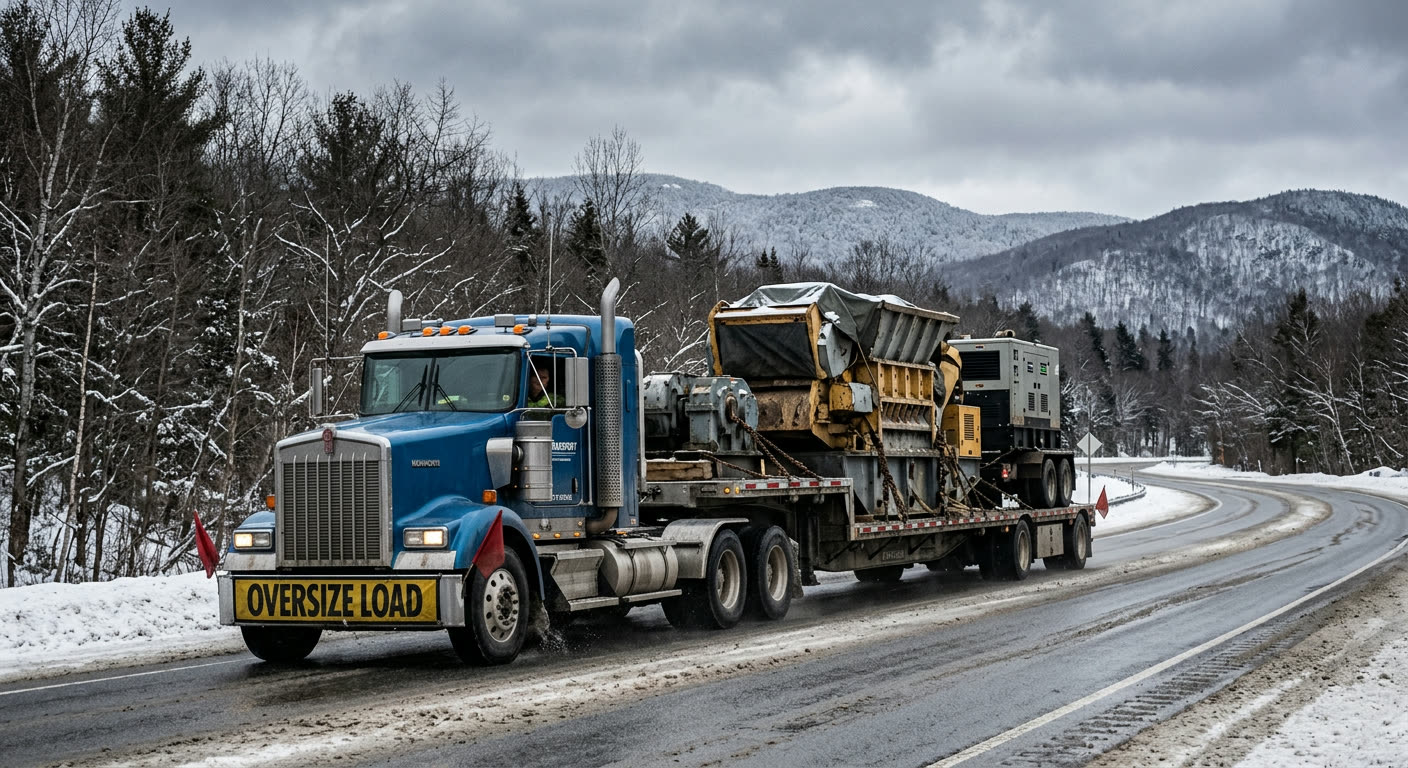
Every load gets typed into Aljex twice.
The shipper already sent the details: names, addresses, dates, weight and reference numbers. Someone still has to key them into Aljex by hand. It’s slow, and it’s where mistakes creep in.
How it works
Three steps, and a person clicks Save.
-
SmartLoads reads the paperwork
The SmartLoads panel in Outlook reads the shipper’s email and the attached PDF or scan: a tender, a rate confirmation or a BOL.
-
One click, and Aljex is filled
Click Copy for Aljex. In Aljex Add Shipment, the SmartLoads extension for Chrome fills the form. You check it and click Save. Nothing is saved until you do.
-
A second pass adds the carrier
After Save, click Fill again. It adds the carrier and the carrier pay, and the Aljex Pro # comes back into SmartLoads.
What you get
Less retyping. Fewer mistakes.
- Reads emails, attached PDFs and scans
- Tenders, rate confirmations and BOLs
- One click copies the whole load
- Fills Aljex Add Shipment for you
- Adds the carrier and carrier pay after Save
- The Aljex Pro # comes back into SmartLoads
- Nothing is saved until a person clicks Save
Screenshots
From the shipper’s email to a filled Aljex screen.
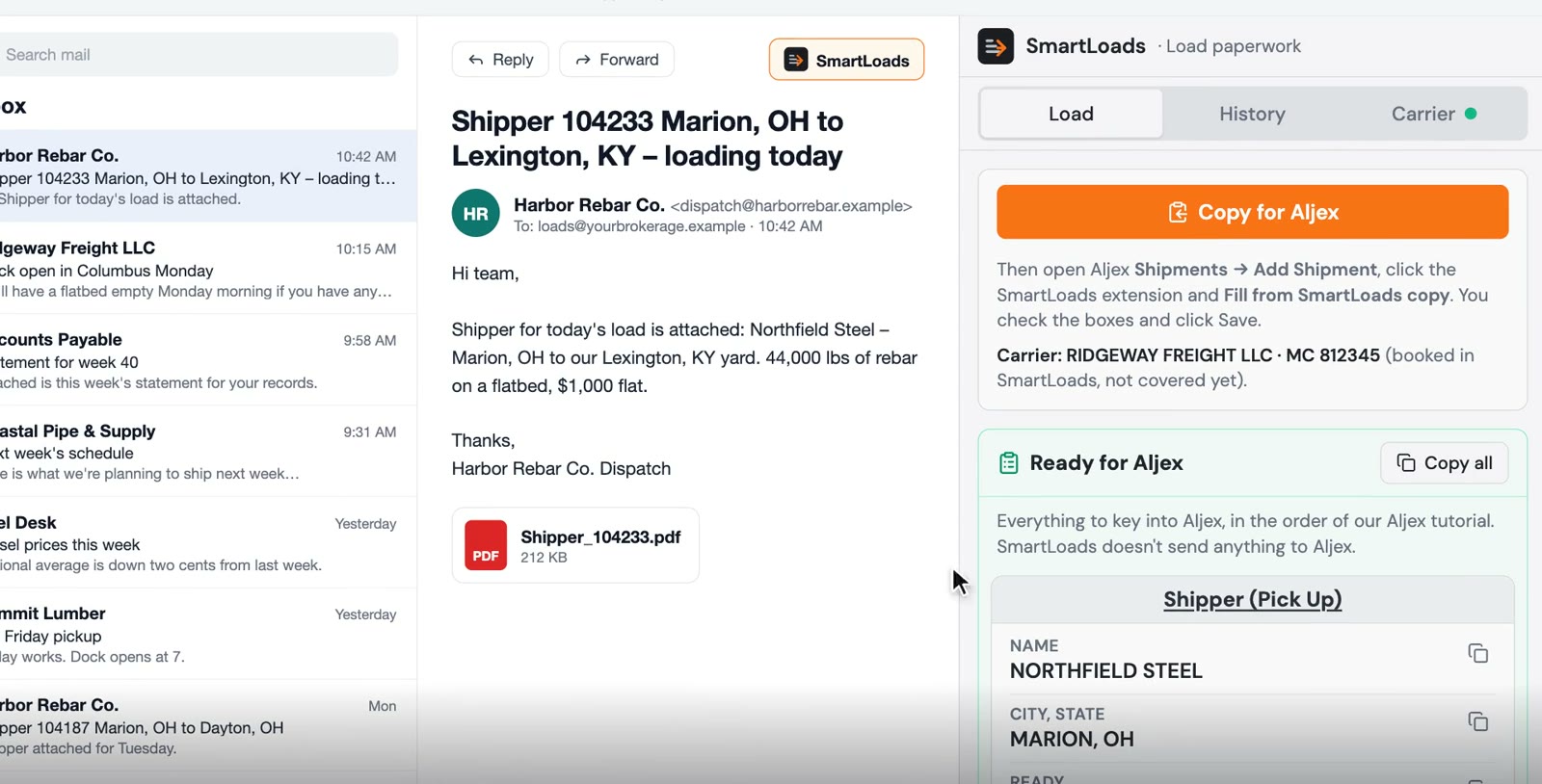
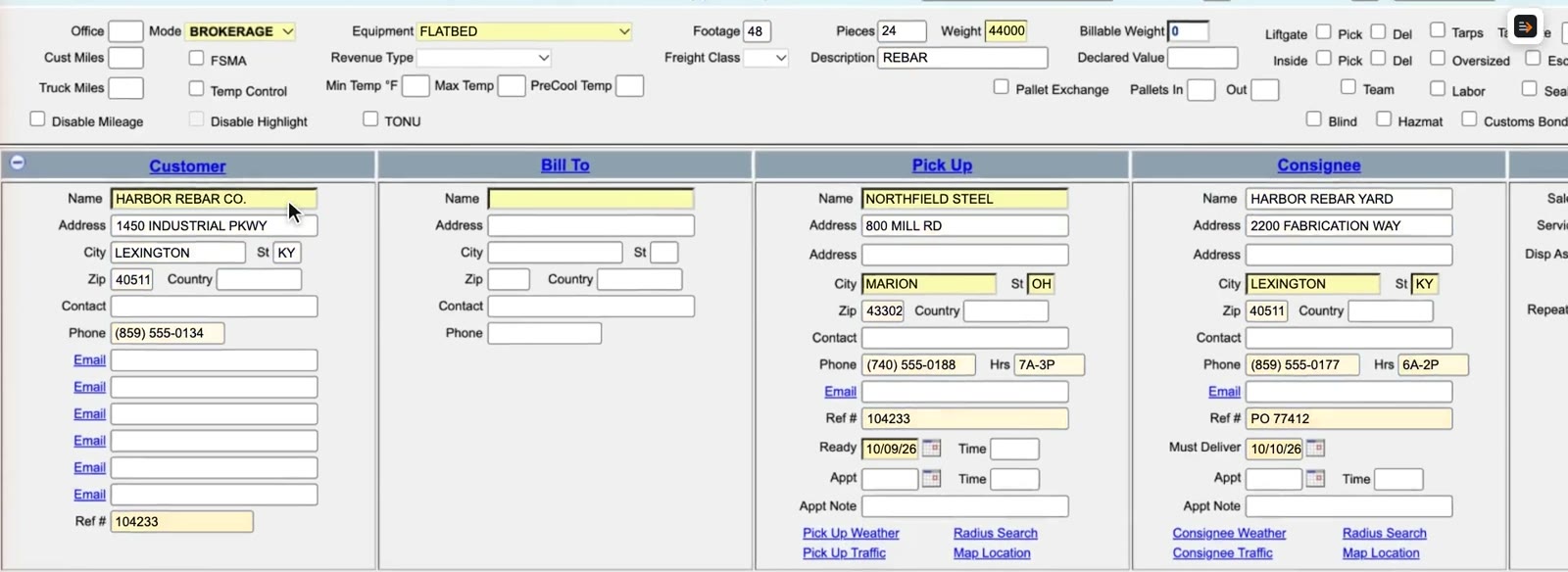
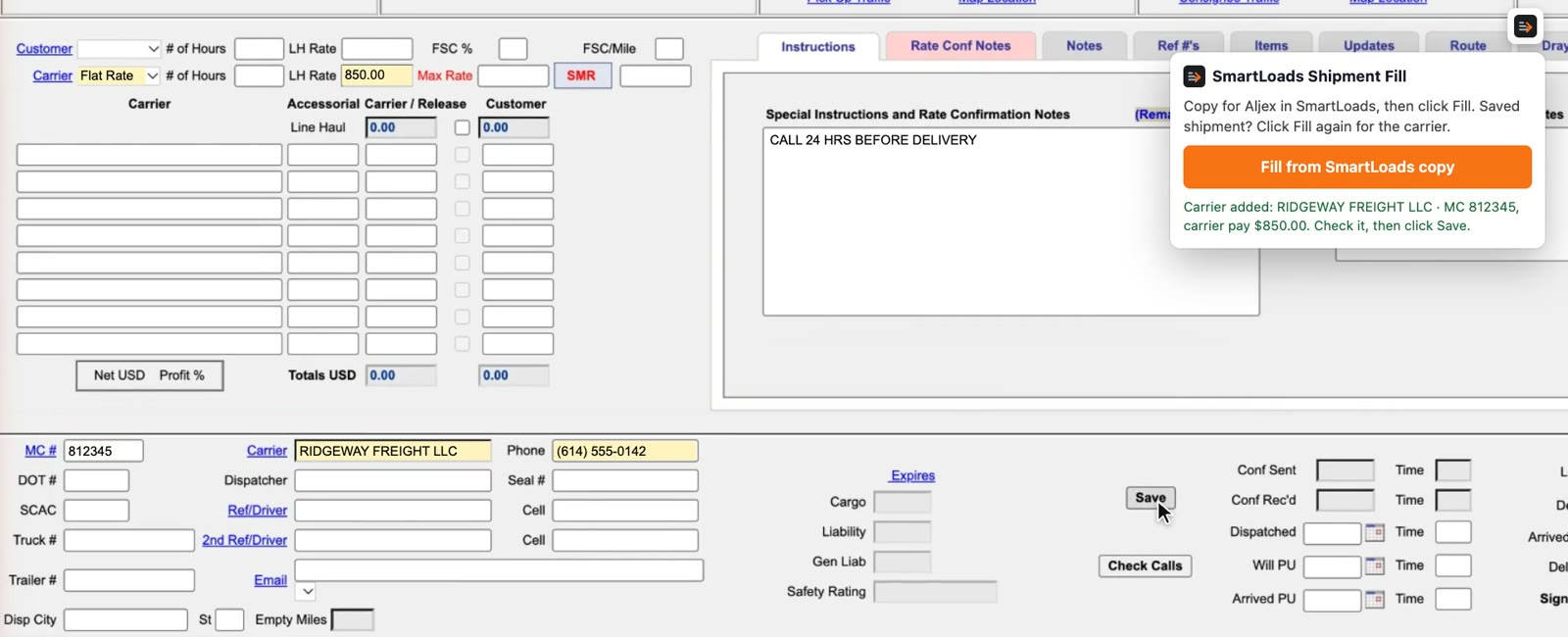
The shipper, carrier and load in these screens are made up.
Cover your next load in under a minute.
See SmartCover on your own paperwork.